
Jump to:
Genesis R&D 1.6
Using the “Promote” option for components requires a basic understanding of components, so this article will briefly define “components,” look at how to display them on your Supplement Facts label and discuss how and why to “Promote” the components.
- “Components” defined
- How to display components on the Supplement Facts label
- How and why to promote components
“Components” defined
“Components” is a term used by Genesis R&D Supplement to indicate the varied building blocks of Ingredients (though it’s important to note that not all Ingredients must be made up of components).
Components include label nutrients that have %DVs, other nutrients and proximates, compounds (such as bioflavonoids), dietary ingredients, herbs, and more. Genesis R&D comes populated with 131 components as of version 2.0, but you can also add your own.
How to display components on the Supplement Facts label
When you build a Formula that includes any Ingredients with components, you can choose to display those components on your Supplement Facts label.
- Select the Ingredient on the Label
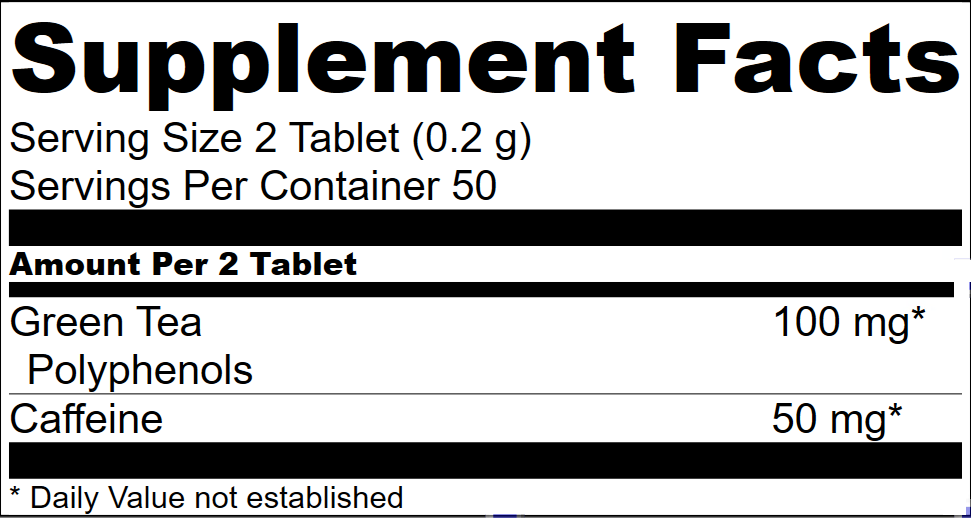
- Click S next to the component names. This will display the component indented and underneath its parent Ingredient, like you see with Polyphenols in the example below. You could also display the component to the left of the Ingredient in parentheses.

How and why to “Promote” components
There may be some use cases when you want to display a component as its own freestanding label item and not under its ingredient. This is when to use Promote.
- Access the component by highlighting its Ingredient or, if the component has already been shown, highlighting the component itself.
- Click the P (promote) button next to the component.

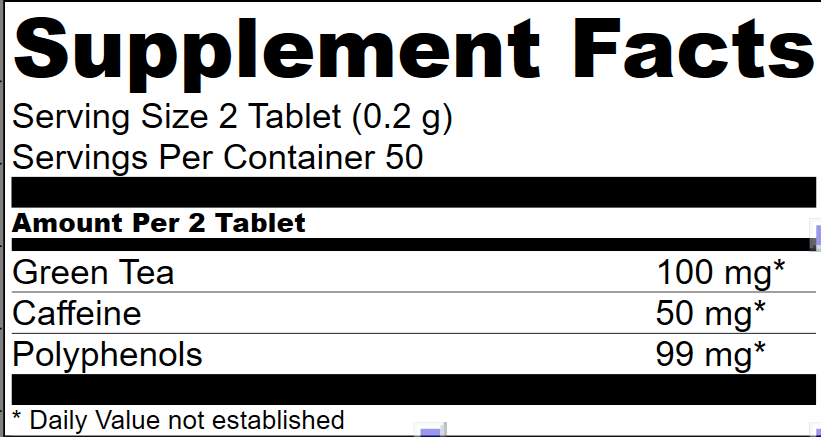
- This moves the component to its own line and left-justifies it, like any other label nutrient. At this point, you could display the source Ingredient underneath the component or next to it in parentheses.
Genesis R&D 2.0
Using the “Promote” option for components requires a basic understanding of components, so this article will briefly define “components,” look at how to display them on your Supplement Facts label and discuss how and why to “Promote” the components.
- “Components” defined
- How to display components on the Supplement Facts label
- How and why to promote components
“Components” defined
“Components” is a term used by Genesis R&D Supplement to indicate the varied building blocks of Ingredients (though it’s important to note that not all Ingredients must be made up of components).
Components include label nutrients that have %DVs, other nutrients and proximates, compounds (such as bioflavonoids), dietary ingredients, herbs, and more. Genesis R&D comes populated with 131 components as of version 2.0, but you can also add your own.
How to display components on the Supplement Facts label
When you build a Formula that includes any Ingredients with components, you can choose to display those components on your Supplement Facts label.
- Select the Ingredient on the Label
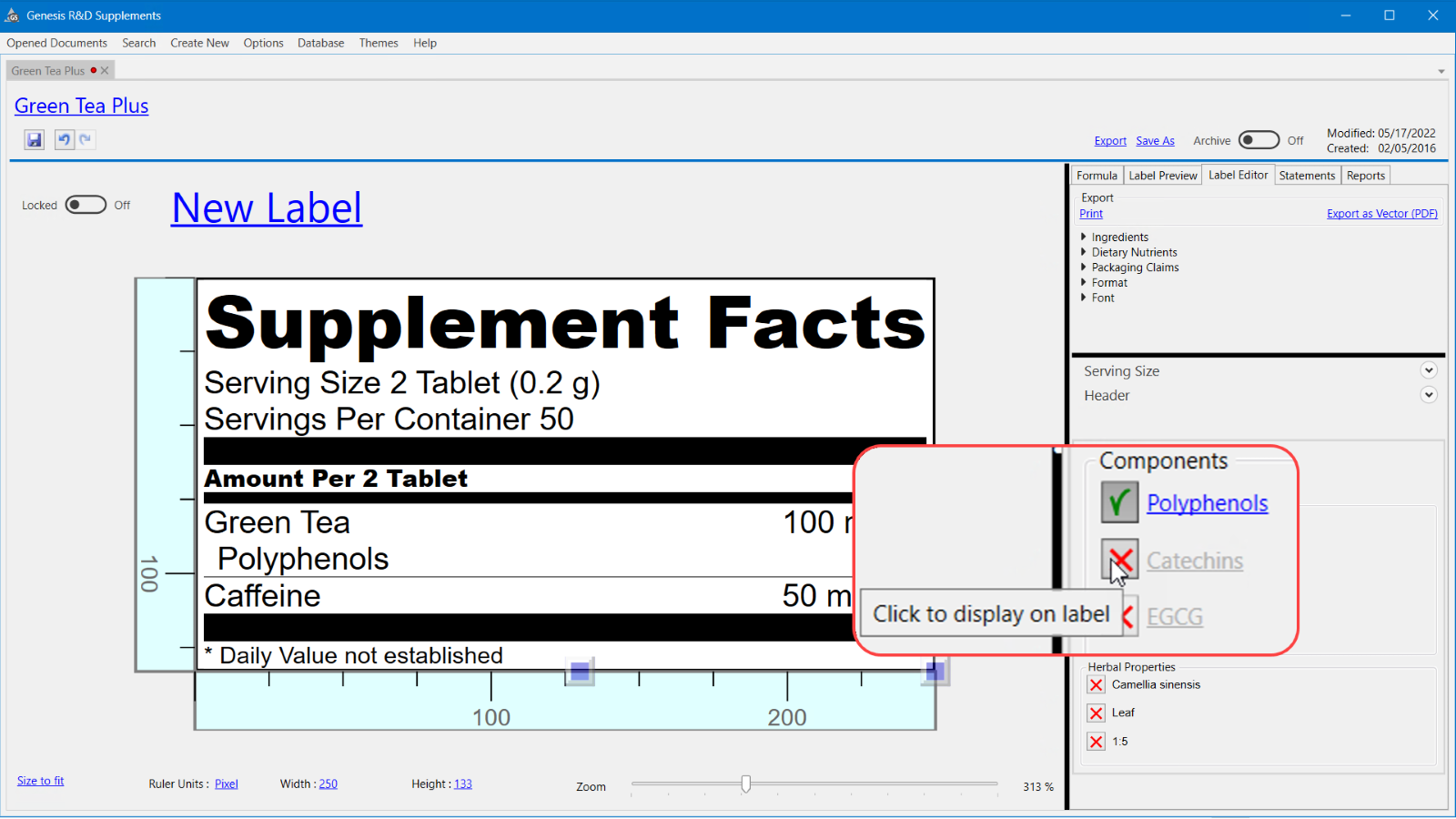
- Check any of the boxes next to the component names. This will display the component indented and underneath its parent Ingredient, like you see with Polyphenols in the example below. You could also display the component to the left of the Ingredient in parentheses.
How and why to “Promote” components
There may be some use cases when you want to display a component as its own freestanding label item and not under its ingredient. This is when to use Promote.
- Access the component by highlighting its Ingredient or, if the component has already been shown, highlighting the component itself.
- Right-click on the component and select Promote.
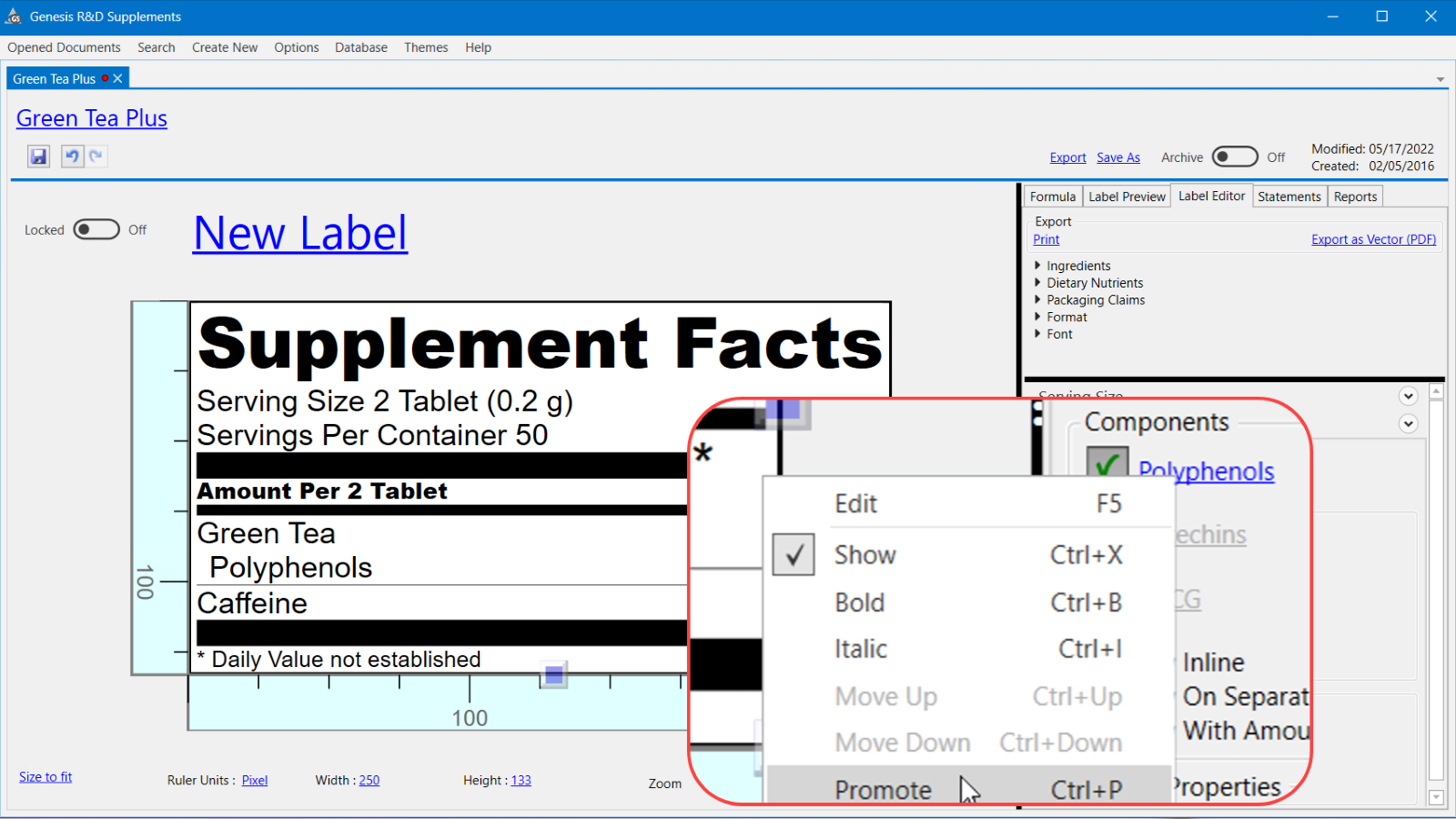
This moves the component to its own line and left-justifies it, like any other label nutrient. At this point, you could display the source Ingredient underneath the component or next to it in parentheses.
Comments
0 comments
Please sign in to leave a comment.